
搜索到
3
篇与
的结果
-
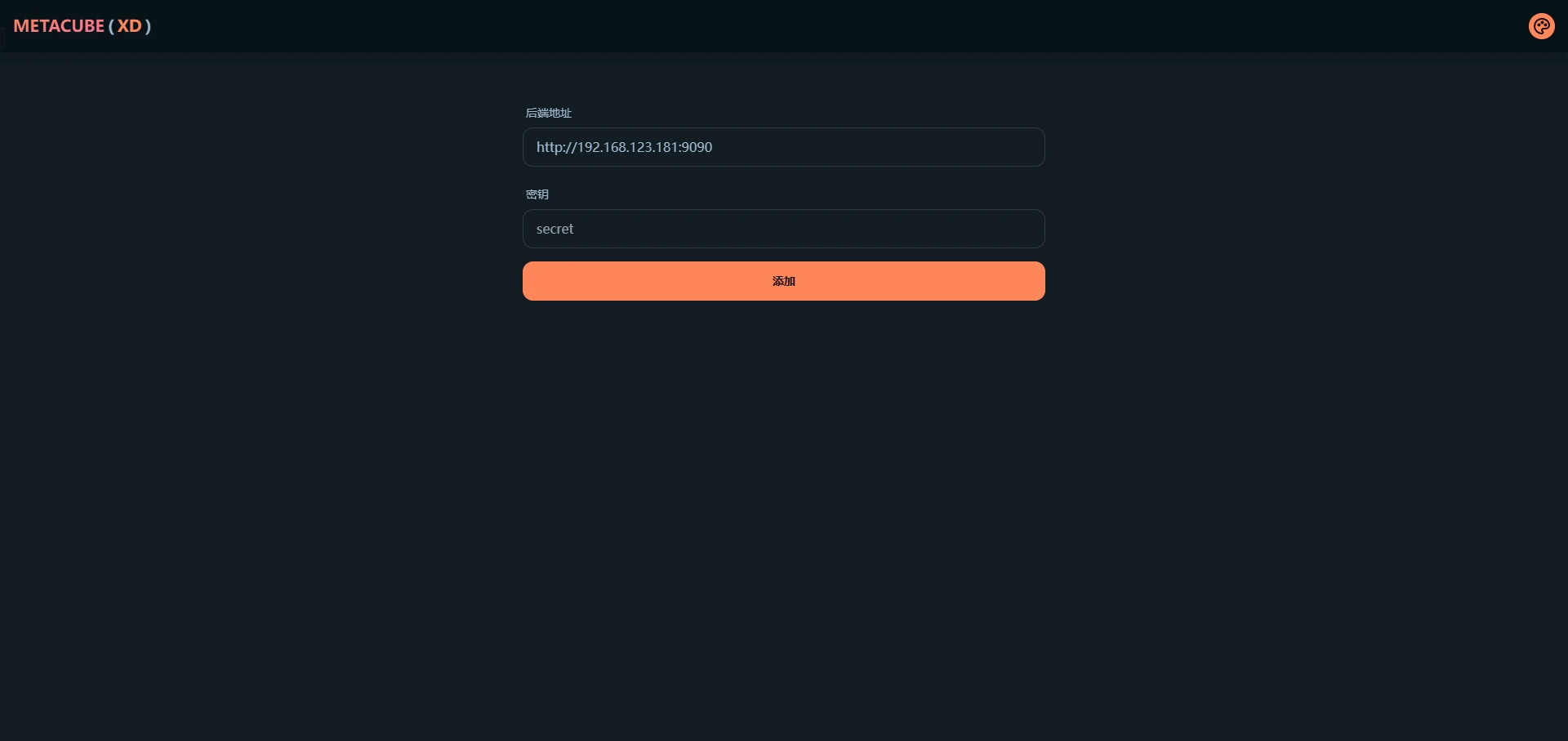
 【N1和Armbian】十一、在 docker 中使用 mihomo 须知本文默认您已经安装好了 docker 并了解 docker 的一些基本概念如果您是纯命令行环境,本文将默认你会命令行最基本的使用(如创建文件/文件夹、编辑文本等)mihomo 是 clash 的一个分支,也是目前使用最广泛的分支,各平台许多客户端使用的核心均为 mihomo,或者它曾经还有个可能更多人听过的名字叫 mihomo meta。需要说明的是 mihomo 与最原始的 clash 本身都是一个纯命令行程序,这意味着它本身没有图形界面,但本文会讲到如何配置 mihomo 的 webUI,以便日常使用。编写 mihomo 配置文件新建一个空文件夹命名为 mihomo,在其中新建文本文档 config.yaml可参考下方模板来创建您自己的配置文件,模板参考自官方文档,如果你希望了解配置文件的具体规则,同样请参考官方文档。(本文最后有链接)该模板中必须要修改的是第 19、20 行与 25 行,根据实际情况进行填写,修改模板后不含模板中的尖括号。其中节点提供者名称可自由填写,用于程序区分多个订阅;节点名称前缀会在显示节点信息时插入到原始节点名称前,便于自己区分不同订阅的节点。第 1 行为代理端口设置,第 6 行为外部控制端口设置(如使用 webUI 控制 mihomo)如有需要可自行更改。# =================== 基础设置 =================== mixed-port: 7890 allow-lan: true bind-address: '*' mode: rule log-level: warning external-controller: '0.0.0.0:9090' # =================== 连接优化与实验性功能 =================== tfo: true experimental: http2: true # 提升网页/YouTube加载速度 sniff-tls-sni: false # 更兼容,避免部分网站 TLS 握手失败 # =================== Profile 与连接优化 =================== profile: store-selected: true store-fake-ip: true unified-delay: true keep-alive-interval: 15 # 每15秒保活长连接 tcp-concurrent: true global-client-fingerprint: chrome # =================== 嗅探(新版,无警告)=================== sniff: enabled: true include: - tls - http parse-pure-ip: true override-destination: true force-dns-mapping: true skip-domain: - "+.local" - "+.lan" - "localhost" - "+.alipay.com" - "+.tenpay.com" - "mch.weixin.qq.com" # =================== 代理节点提供者 =================== proxy-providers: 自己: type: file path: ./subs-check/output/mihomo.yaml interval: 3600 health-check: enable: true url: "https://www.gstatic.com/generate_204" interval: 300 timeout: 3000 lazy: true method: GET disable-keepalive: true override: additional-prefix: "MY_" IKUUU: url: "https://rze57.no-mad-world.club/link/WM9j6NcfU4Odu20u?clash=3&extend=1" type: http interval: 3600 health-check: enable: true url: "https://www.gstatic.com/generate_204" interval: 300 timeout: 3000 lazy: true method: GET disable-keepalive: true override: additional-prefix: "IKUUU_" # =================== 本地代理 =================== proxies: - name: "🎯 直连" type: direct udp: true - name: "🛑 拒绝" type: reject udp: true # =================== Geo 数据源(使用 github.dpik.top 加速)=================== geodata-mode: true geox-url: geoip: "https://github.dpik.top/MetaCubeX/meta-rules-dat/releases/download/latest/geoip.dat" geosite: "https://github.dpik.top/MetaCubeX/meta-rules-dat/releases/download/latest/geosite.dat" mmdb: "https://github.dpik.top/MetaCubeX/meta-rules-dat/releases/download/latest/country-lite.mmdb" asn: "https://github.dpik.top/MetaCubeX/meta-rules-dat/releases/download/latest/GeoLite2-ASN.mmdb" # =================== DNS 设置 =================== dns: enable: true prefer-h3: true ipv6: false respect-rules: true enhanced-mode: fake-ip fake-ip-range: 198.18.0.1/16 fake-ip-filter: - "+.lan" - "+.local" - "localhost" - "+.market.xiaomi.com" proxy-server-nameserver: - 223.5.5.5 - 119.29.29.29 - https://223.5.5.5/dns-query default-nameserver: - 223.5.5.5 - 119.29.29.29 namesater: - https://120.53.53.53/dns-query - https://223.5.5.5/dns-query fallback: - https://cloudflare-dns.com/dns-query - https://dns.google/dns-query - https://1.1.1.1/dns-query fallback-filter: geoip: true geoip-code: CN ipcidr: - 240.0.0.0/4 - 0.0.0.0/8 domain: - "+.google.com" - "+.gstatic.com" - "+.facebook.com" - "+.twitter.com" - "+.telegram.org" - "+.youtube.com" - "+.netflix.com" - "+.googleusercontent.com" nameserver-policy: "geosite:cn,private": - https://120.53.53.53/dns-query - https://223.5.5.5/dns-query "geosite:geolocation-!cn": - https://cloudflare-dns.com/dns-query - https://dns.google/dns-query # =================== 代理组 (移除AI和奈飞专用组) =================== proxy-groups: - name: "⚡ 超高速节点" type: url-test use: ["自己", "IKUUU"] url: "https://www.gstatic.com/generate_204" interval: 300 tolerance: 100 lazy: true max-failed-times: 3 - name: "🚀 高速节点" type: url-test use: ["自己", "IKUUU"] url: "https://www.gstatic.com/generate_204" interval: 300 tolerance: 50 timeout: 3000 lazy: true - name: "🚀 节点选择" type: select proxies: - "⚡ 超高速节点" - "🚀 高速节点" - "🚀 手动切换" - "🎯 直连" - name: "🚀 手动切换" type: select include-all: true - name: "📱 电报消息" type: select proxies: - "⚡ 超高速节点" - "🚀 高速节点" - "🚀 手动切换" - name: "📺 油管视频" type: select proxies: - "⚡ 超高速节点" - "🚀 高速节点" - "🚀 手动切换" - name: "📺 哔哩哔哩" type: select proxies: - "🎯 直连" - "🚀 节点选择" - name: "🇨🇳 国内媒体" type: select proxies: - "🎯 直连" - name: "🐟 漏网之鱼" type: select proxies: - "🚀 节点选择" - "🚀 手动切换" - "🎯 直连" # =================== 规则提供者 (移除 Telegram/YouTube/ProxyGFWlist 的外部文件) =================== rule-providers: LocalAreaNetwork: url: "https://testingcf.jsdelivr.net/gh/ACL4SSR/ACL4SSR@master/Clash/LocalAreaNetwork.list" path: ./ruleset/LocalAreaNetwork.list behavior: classical interval: 86400 format: text type: http UnBan: url: "https://testingcf.jsdelivr.net/gh/ACL4SSR/ACL4SSR@master/Clash/UnBan.list" path: ./ruleset/UnBan.list behavior: classical interval: 86400 format: text type: http # =================== 规则 =================== rules: - "PROCESS-NAME,subs-check.exe,🎯 直连" - "PROCESS-NAME,subs-check,🎯 直连" - "RULE-SET,LocalAreaNetwork,🎯 直连" - "RULE-SET,UnBan,🎯 直连" - "GEOSITE,private,🎯 直连" - "GEOSITE,telegram,📱 电报消息" - "GEOSITE,youtube,📺 油管视频" - "GEOSITE,gfw,🚀 节点选择" - "GEOSITE,cn,🎯 直连" - "GEOIP,CN,🎯 直连" - "MATCH,🐟 漏网之鱼"安装mihomo和webUI对于 metacubexd 服务:docker run -d \ --name metacubexd \ --restart always \ -p 9097:80 \ ghcr.io/metacubex/metacubexd对于 mihomo 服务:由于mihomo使用了host网络模式、添加了所有的Linux capabilities (cap_add: - ALL),并且挂载了一些特殊的卷(如/dev/net/tun),其docker run命令稍微复杂一些。请确保替换<config.yaml所在目录>为您实际的配置文件目录路径。docker run -d \ --name mihomo \ --restart always \ --pid host \ --ipc host \ --network host \ --cap-add ALL \ -v <config.yaml所在目录>:/root/.config/mihomo \ -v /dev/net/tun:/dev/net/tun \ docker.io/metacubex/mihomo:latest打开 webUI 并开始使用在局域网内任意设备浏览器中输入 设备IP:9097 即可访问 metacubexd 的界面,后端地址填写 http://设备IP:9090 ,密钥留空即可,如图所示,点击添加便可管理 mihomo 的各项配置。若在前文中修改了 webUI 访问端口和外部控制端口,请自行替换为自己设置的端口号。如果你使用 metacubexd 更改了一些设置,那将只会在 mihomo 的本次运行生效,重启 mihomo 会将所有设置重置为你第一步在 config.yaml 中所填写的配置至此已搭建完成,在需要使用网络代理的地方在代理选项内填入 设备IP:7890 即可使用。附上我的配置{cloud title="蓝奏云" type="lz" url="https://daimafengzi.lanzout.com/iDf3835ejsdi" password=""/}{cloud title="百度云" type="bd" url="https://pan.baidu.com/s/1r6gbtIhPDl0vuL45X6hn3w?pwd=2jff" password="2jff"/}{cloud title="123盘" type="default" url="https://www.123912.com/s/0ztiVv-K7Yod" password=""/}{cloud title="天翼云(访问码:to8l)" type="default" url="https://cloud.189.cn/web/share?code=yQriea7NjEby" password=""/}
 -
WordPress通过短代码插入bilibili视频 前言Bilibili 是国内知名的视频分享平台,上面有很多精良而又有趣的视频。一些人喜欢 (比如我) 把 B 站视频通过 iframe 插入网页上,但代码大长 (约 230 个字符)。于是为了方便大家,我堤供一个在 WordPress 通过短代码插入 bilibili 视频的教程。教程一、打开 WordPress 根目录下 wp-content/themes/你正在使用的主题/functions.php 文件或者你在仪表盘的主题文件编辑器中打开 functions.php 文件二、复制下面的代码到 functions.php 文件的最后处// 添加插入bilibili视频短代码 function vbilibili_shortcode( $atts, $content = null ) { // 解析短代码中的参数 // $atts = shortcode_atts( $defaults, $atts ); // 提取$content中的所有bv号和av号 preg_match_all('/BV([a-zA-Z0-9]+)/', $content, $bv_matches); preg_match_all('/av([0-9]+)/', $content, $av_matches); // 构建iframe的HTML代码 $iframes = ''; // 生成bv号对应的iframe if (!empty($bv_matches[1])) { foreach ($bv_matches[1] as $bv) { $iframe_url = 'https://player.bilibili.com/player.html?bvid=' . $bv . '&high_quality=1'; $iframe = ' <iframe src="' . $iframe_url . '" frameborder="no" scrolling="no" sandbox="allow-top-navigation allow-same-origin allow-forms allow-scripts" allowfullscreen="allowfullscreen" style="position: absolute; width: 100%; height: 100%; left: 0; top: 0;"> </iframe> '; $iframes .= $iframe; } } // 生成av号对应的iframe if (!empty($av_matches[1])) { foreach ($av_matches[1] as $av) { // 将$av转换为整数类型 $av = intval($av); $iframe_url = 'https://player.bilibili.com/player.html?aid=' . $av . '&high_quality=1'; $iframe = ' <iframe src="' . $iframe_url . '" frameborder="no" scrolling="no" sandbox="allow-top-navigation allow-same-origin allow-forms allow-scripts" allowfullscreen="allowfullscreen" style="position: absolute; width: 100%; height: 100%; left: 0; top: 0;"> </iframe> '; $iframes .= $iframe; } } // 返回所有iframe的HTML代码 return $iframes; } add_shortcode( 'vbilibili', 'vbilibili_shortcode' );简码使用说明用法,下面哪种都行 //请把< 换成 [ <vbilibili]啥都行,只要有bv和av在这就行了[/vbilibili] <vbilibili]https://www.bilibili.com/video/BV1EX4y127J9/[/vbilibili] <vbilibili]BV1L94y1p72w[/vbilibili] <vbilibili]BV1L94y1p72w,https://www.bilibili.com/video/BV1RN41BV1RN411w7Bv1w7Bv/[/vbilibili] <vbilibili]华为能挡子弹?Mate 60 Pro 碾压 跌落 实弹测试! - 哔哩哔哩https://www.bilibili.com/video/BV1L94y1p72w/[/vbilibili]参数av:Bilibili 视频的 AV 号av和bv必填一项bv:Bilibili 视频的 BV 号av和bv必填一项h:X/Xpx/X% Bilibili 视频的高度号w:X/Xpx/X% Bilibili 视频的宽度号注意:Bilibili 视频的 AV 号或 BV 号是必须的,但只要输入 AV 号或 BV 号的其中一个即可。Bilibili 视频的 AV 号不要带上 av如果是列表页则在参数后面带第几个视频的参数:<vbilibili]BV1YT4y1H7YM&page=2[/vbilibili] //请把 < 换成 [ 列子{bilibili bvid="BV1YT4y1H7YM" /}
-