
搜索到
62
篇与
的结果
-
 Docker系列 深度使用nextcloud(六)解决nextcloud运行缓慢 Docker系列 深度使用nextcloud(六)解决nextcloud运行缓慢1、设置Nextcloud关掉弹出窗口(Dashboard)、Talk、Contacts、设置–基本设置–后台任务选Cron2、redis和APCu笔者系统docker中已安装redis,APCu也是nextcloud容器自带,配置一下即可:# 在nextcloud配置redis,编辑config.php 'memcache.local' => '\\OC\\Memcache\\APCu', 'memcache.locking' => '\OC\Memcache\Redis', 'redis' => array ( 'host' => '192.168.2.9', 'port' => 6379, ),3、计划任务容器没有Crontab,只好在宿主机执行了,ext文件系统须指定用户。# 定时每五分钟执行cron.php */5 * * * * docker exec --user www-data nextcloud php cron.php # 文件找不到,手动运行一次后,配置个自动任务,每天自动执行一次 59 23 * * * docker exec --user www-data nextcloud php occ files:scan --all重启一下docker就ok了! 这回差不多了吧,这篇超长博文应该要完了!
 -
Docker系列 redis安装教程 ①.先安装redis复制以下命令到ssh一键安装mkdir -p /mydata/redis/conf touch /mydata/redis/conf/redis.conf docker run -p 6379:6379 --name redis \ -v /mydata/redis/data:/data \ -v /mydata/redis/conf/redis.conf:/etc/redis/redis.conf \ -itd redis redis-server /etc/redis/redis.conf \ --appendonly yes ②.再配置文件设置redis环境变量(可不填,使用默认127.0.0.1:6379):export redis_url="" # 填redis服务器ip export redis_port="" # 支持更换自定义端口 export redis_pwd="" # 未设置redis密码就空着
-
-
-
如何拷贝Docker容器里的东西 前言近年来,Docker容器的使用越来越广泛,它可以将应用程序以容器的形式打包,方便移植到不同的环境中。但是在一些场景下,我们可能需要将Docker容器中的数据或者代码拷贝出来,本篇文章将介绍如何拷贝Docker容器里的东西。Docker容器中的数据和代码在一些场景下,我们需要将容器中的数据或者代码拷贝出来,以便备份、迁移、调试等各种需求。在Docker中,数据和代码主要存储在容器的文件系统中,不同的容器之间是相互隔离的,因此不能直接拷贝。需要通过一些命令将数据和代码拷贝到宿主机上,下面介绍两种常见的方式:利用docker cp命令拷贝数据docker cp命令可以将本地文件拷贝到容器里,同时也可以将容器里的文件拷贝到本地,下面是该命令的使用方法:docker cp <容器ID或名称>:<容器内路径> <宿主机路径>其中,<容器ID或名称>表示需要拷贝的容器的ID或名称,<容器内路径>表示需要拷贝的容器内的文件路径,<宿主机路径>表示需要将文件拷贝到的宿主机路径。例如,将容器nginx中的/etc/nginx/nginx.conf文件拷贝到宿主机的/opt目录下:docker cp nginx:/etc/nginx/nginx.conf /opt利用docker commit命令创建镜像利用docker commit命令可以将容器中的文件系统打包成一个新的镜像,具体使用方法如下:docker commit -m "commit message" <容器ID或者名称> <新的镜像名称>其中,-m选项表示本次commit操作的说明。<容器ID或者名称>表示需要打包成镜像的容器的ID或者名称,<新的镜像名称>表示生成的新的镜像名称。例如,将容器nginx中的文件系统打包成新的镜像:docker commit -m "backup nginx config" nginx nginx-config-backup总结拷贝Docker容器里的数据和代码是日常工作中常见的需求,本篇文章从两个方面介绍了如何实现:利用docker cp命令可以将容器中的文件拷贝到本机上,方便备份和调试。利用docker commit命令可以将容器中的文件系统打包成新的镜像,方便迁移和备份。以上两种方式都可以实现拷贝容器中的数据和代码的需求,具体可以根据实际情况选择合适的方式。
-
systemd服务 前言systemd 是一个系统和服务管理器,用于在 Linux 操作系统中启动、停止和管理系统进程和服务。它被广泛用于现代的 Linux 发行版中。以下是一些常用的 systemd 命令和示例:1.启动、停止或重启某个服务:启动服务:systemctl start 服务名 停止服务:systemctl stop 服务名 重启服务:systemctl restart 服务名例如,启动 Apache 服务:systemctl start apache22.查看服务状态:查看某个服务的状态:systemctl status 服务名 查看所有服务的状态:systemctl status例如,查看网络管理服务(NetworkManager)的状态:systemctl status NetworkManager3.设置服务开机自启动:开启服务自启动:systemctl enable 服务名 关闭服务自启动:systemctl disable 服务名例如,设置 Nginx 服务开机自启动:systemctl enable nginx4.查看服务的详细信息和配置:查看某个服务的所有信息:systemctl show 服务名 查看某个服务的具体配置文件路径:systemctl show -p FragmentPath 服务名例如,查看 MySQL 服务的详细信息:systemctl show mysql5.显示服务日志:显示某个服务的日志:journalctl -u 服务名 显示所有服务的日志:journalctl例如,显示 Syslog 服务的日志:journalctl -u syslog此外,systemd 的配置文件一般位于 /etc/systemd/ 目录下,可以根据需要修改相关配置。
-
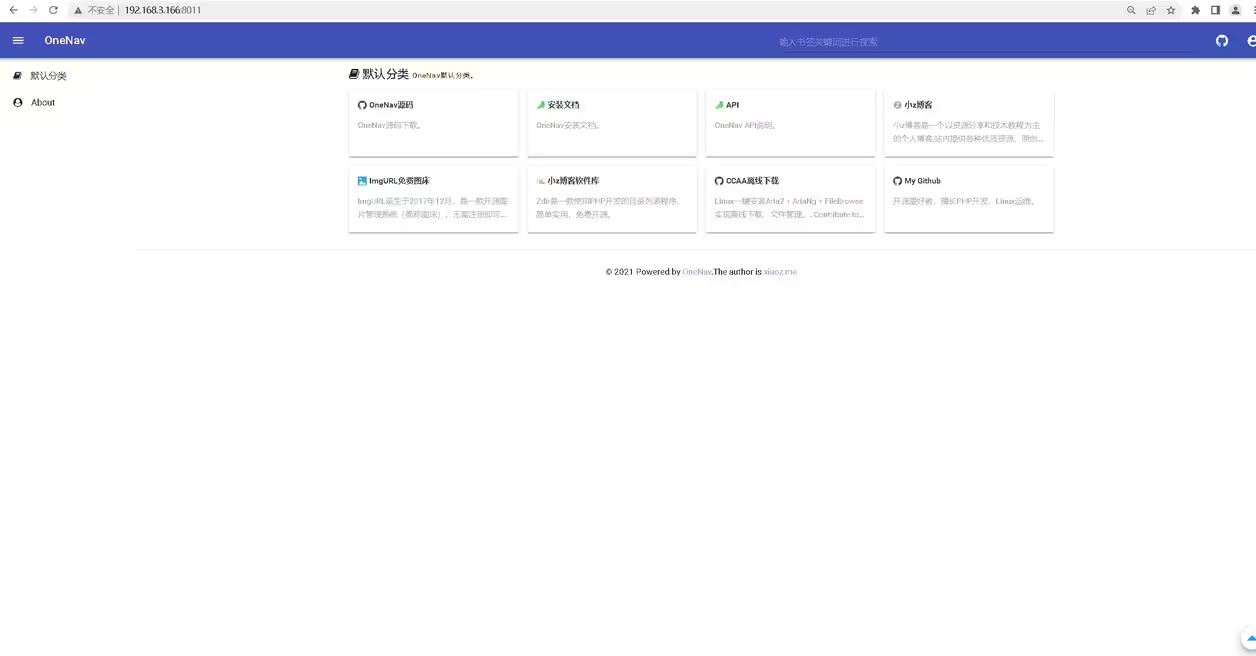
Docker部署OneNav个人书签管理器,个人导航 一、OneNav介绍1.OneNav简介OneNav是一款使用PHP + SQLite 3开发的导航/书签管理器,支持Material Design风格,界面简洁,使用方便。2.OneNav特点支持后台管理支持私有链接支持多种主题风格(默认内置2套模板)支持链接信息自动识别支持API二、下载onenav镜像[root@jeven ~]# docker pull helloz/onenav:latest Using default tag: latest latest: Pulling from helloz/onenav 339de151aab4: Pull complete 4f4fb700ef54: Pull complete 64e2d91f6a6b: Pull complete aedf58cb2c7e: Pull complete 03e9996f76bb: Pull complete 16141d74ea3a: Pull complete Digest: sha256:da1030a7d0b01f3918f7806eef984f686d3578e4de34d592fb4f956341b6a741 Status: Downloaded newer image for helloz/onenav:latest docker.io/helloz/onenav:latest三、部署OneNav应用1.创建数据目录[root@jeven ~]# mkdir -p /data/onenav [root@jeven ~]# cd /data/onenav/ [root@jeven onenav]#2.创建OneNav容器[root@jeven onenav]# docker run -d --name="onenav" --restart always -p 8011:80 -e USER='admin' -e PASSWORD='admin' -v /data/onenav/data:/data/wwwroot/default/data helloz/onenav:0.9.29 8e43316064d1a938600f1309883fac6b2e63279c9d2fe90fe554eecfd9fda8273.查看OneNav容器状态[root@jeven onenav]# docker ps CONTAINER ID IMAGE COMMAND CREATED STATUS PORTS NAMES 8e43316064d1 helloz/onenav "/usr/sbin/run.sh" 32 seconds ago Up 30 seconds 0.0.0.0:8011->80/tcp, :::8011->80/tcp onenav四、访问OneNav首页五、访问OneNav后台
-
qbittorrent搜索在线插件 https://raw.githubusercontent.com/khensolomon/leyts/master/yts.py https://raw.githubusercontent.com/solenskiner/search-plugins/master/nova3/engines/academictorrents.py https://raw.githubusercontent.com/hannsen/qbittorrent_search_plugins/master/ali213.py https://raw.githubusercontent.com/hannsen/qbittorrent_search_plugins/master/threedm.py https://raw.githubusercontent.com/lima66/Torrents_Plugin/master/btetree.py https://raw.githubusercontent.com/MaurizioRicci/qBittorrent_search_engine/master/cinecalidad.py https://raw.githubusercontent.com/davy39/qbfrench/master/cpasbien.py https://raw.githubusercontent.com/hannsen/qbittorrent_search_plugins/master/demonoid.py https://github.com/xyauhideto/DMHY_qBittorrent_search_plugin/raw/master/dmhyorg.py https://raw.githubusercontent.com/MaurizioRicci/qBittorrent_search_engine/master/ettv.py https://raw.githubusercontent.com/MaurizioRicci/qBittorrent_search_engine/master/extratorrent.py https://raw.githubusercontent.com/nindogo/qbtSearchScripts/master/idope.py https://raw.githubusercontent.com/MaurizioRicci/qBittorrent_search_engine/master/corsaroblu.py https://raw.githubusercontent.com/MaurizioRicci/qBittorrent_search_engine/master/corsaronero.py https://raw.githubusercontent.com/MaurizioRicci/qBittorrent_search_engine/master/kickass_torrent.py https://raw.githubusercontent.com/MadeOfMagicAndWires/qBit-plugins/6074a7cccb90dfd5c81b7eaddd3138adec7f3377/engines/linuxtracker.py https://raw.githubusercontent.com/nindogo/qbtSearchScripts/master/magnetdl.py https://raw.githubusercontent.com/MaurizioRicci/qBittorrent_search_engine/master/mejor.py https://raw.githubusercontent.com/nindogo/qbtSearchScripts/master/mkvcage.py https://raw.githubusercontent.com/4chenz/pantsu-plugin/master/pantsu.py https://raw.githubusercontent.com/MadeOfMagicAndWires/qBit-plugins/master/engines/nyaapantsu.py https://raw.githubusercontent.com/MadeOfMagicAndWires/qBit-plugins/master/engines/nyaasi.py https://raw.githubusercontent.com/Pireo/hello-world/master/rockbox.py https://raw.githubusercontent.com/Pireo/hello-world/master/rutor.py https://gist.githubusercontent.com/kernc/67c939c57edb7dd057b3abf9f159598a/raw/09c0099fc8cd8bd2326e5881a8f77c2dffb8e16b/skytorrents.py https://raw.githubusercontent.com/hannsen/qbittorrent_search_plugins/master/smallgames.py https://raw.githubusercontent.com/gitDew/qbittorrent-snowfl-search-plugin/master/snowfl.py https://raw.githubusercontent.com/MaurizioRicci/qBittorrent_search_engine/master/solotorrent.py https://raw.githubusercontent.com/phuongtailtranminh/qBittorrent-Nyaa-Search-Plugin/master/nyaa.py https://raw.githubusercontent.com/4chenz/pantsu-plugin/master/sukebei.py https://raw.githubusercontent.com/ngosang/qBittorrent-plugins/master/sumotorrent/sumotorrent.py https://raw.githubusercontent.com/ngosang/qBittorrent-plugins/master/tntvillage/tntvillage.py https://raw.githubusercontent.com/BrunoReX/qBittorrent-Search-Plugin-TokyoToshokan/master/tokyotoshokan.py https://raw.githubusercontent.com/CravateRouge/qBittorrentSearchPlugins/master/torrent9.py https://raw.githubusercontent.com/MaurizioRicci/qBittorrent_search_engine/master/torrentfunk.py https://raw.githubusercontent.com/nindogo/qbtSearchScripts/master/uniondht.py https://raw.githubusercontent.com/nindogo/qbtSearchScripts/master/yourbittorrent.py https://raw.githubusercontent.com/MadeOfMagicAndWires/qBit-plugins/master/engines/bakabt.py https://raw.githubusercontent.com/adrianmocan/qbittorrent_plugin_filelist.ro/master/filelist_ro/filelist.py https://raw.githubusercontent.com/hannsen/qbittorrent_search_plugins/master/jackett.py https://raw.githubusercontent.com/Skymirrh/qBittorrent-rutracker-plugin/master/rutracker.py https://raw.githubusercontent.com/alvin1979/qbrutracker/master/qbrutracker.py https://raw.githubusercontent.com/CravateRouge/qBittorrentSearchPlugins/master/yggtorrent.py